
Use cases
Automate bug fixes from Linear tickets
Turn a reproducible Linear bug into implementation, code review, and verification by applying a label matched by a Prinevo automation rule.
Use it for bounded, reproducible bugs
This workflow suits a bug with known reproduction steps and an observable expected result. Keep using Linear to describe the issue and GitHub or Bitbucket to review the change. A matching label starts the configured Prinevo work.
Creating an issue by itself does not automatically authorize work. The issue event must match the active rule.
Write a ticket the agents can verify
Title: Prevent duplicate form submission
Repository: [name]
Reproduction:
1. Open the form and enter valid values.
2. Submit twice while the first request is pending.
Actual: the same operation is submitted twice.
Expected: only one submission is accepted while the first is pending.
Acceptance criteria:
- Pending submission disables the submit action.
- Success completes once.
- Failure restores the action and displays a useful error.
Constraints: preserve existing validation and response contracts.
Done: draft PR linked to this issue, reviewed and regression-tested.
Add logs, screenshots, or a recording when they clarify the bug. Keep secrets and unrelated customer data out of the ticket. If behavior or scope is uncertain, clarify it before allowing implementation to expand.
Configure the Linear webhook and rule
Connect GitHub or Bitbucket and an agent provider in Integrations. Select the repositories for your product and let Factory setup prepare them automatically. Review and merge any required setup PRs in their respective repositories. Configure models in Agents and compute in Settings.
- Open Automation and choose Set up Linear webhook.
- Create the webhook URL in Prinevo.
- In Linear, open Settings → API → Webhooks → New webhook. Paste the URL and select Issues and the intended teams.
- Copy the signing secret from Linear’s webhook detail page into Prinevo, then select Save and activate.
- Create a label-based rule with New rule. Choose Quick lane for the Implement, Code Review, and Verify sequence.
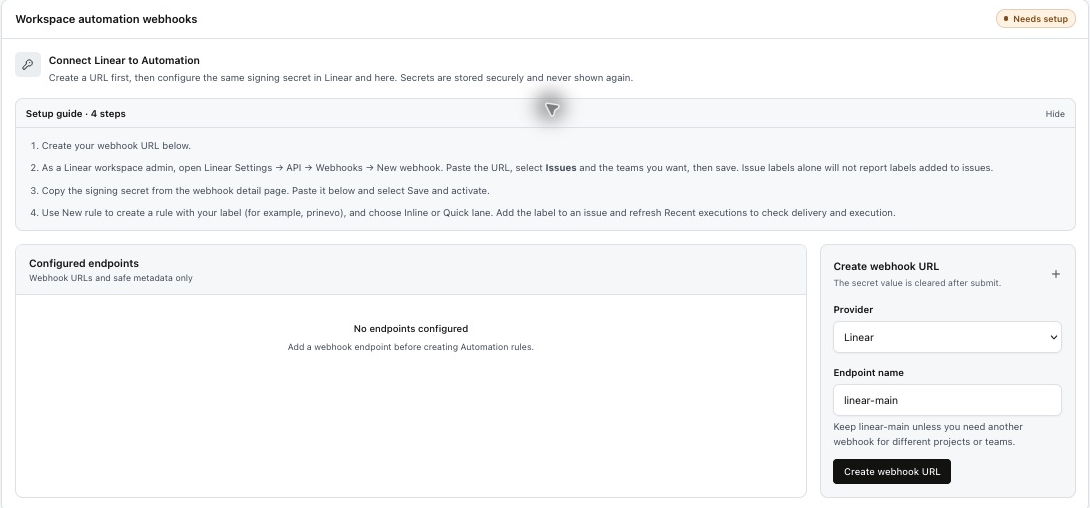
Select Issues events; Issue labels alone does not report labels added to issues. A Linear API or MCP connection provides agent tool access separately from webhook delivery.
Detailed webhook and rule instructions · Connect Linear MCP tools
Apply the label and inspect the first execution
Add the configured label, such as prinevo, to the prepared issue. In Prinevo, refresh Recent executions and confirm the matching delivery and action run. Open the session to inspect progress and respond to any request for clarification.
Use the execution and PR already associated with the issue when checking progress. If an event or retry appears duplicated, inspect the existing work before starting another request.
Review the resulting fix
- The PR references the Linear issue and targets the correct repository and base branch.
- The implementation addresses the original reproduction and preserves the agreed constraints.
- Code Review’s actionable findings are resolved.
- Verify reports the relevant regression checks and any remaining limitations.
- The team approves merge and any release action through its usual process.
Request a draft PR in the issue when that is the intended delivery artifact. A request for a PR is not proof it was created; open and inspect the actual result.
When the bug needs more than a quick fix
If the work reveals a new architecture, contract, migration, or product decision, resolve that scope change before continuing. Use Full Lane for work that needs deeper design. For missing access or execution failures, follow the reported recovery action in the existing session.