
Run work
Configure compute profiles
Compute profiles define the CPU, memory, and storage available to an agent cloud workspace.
View profiles
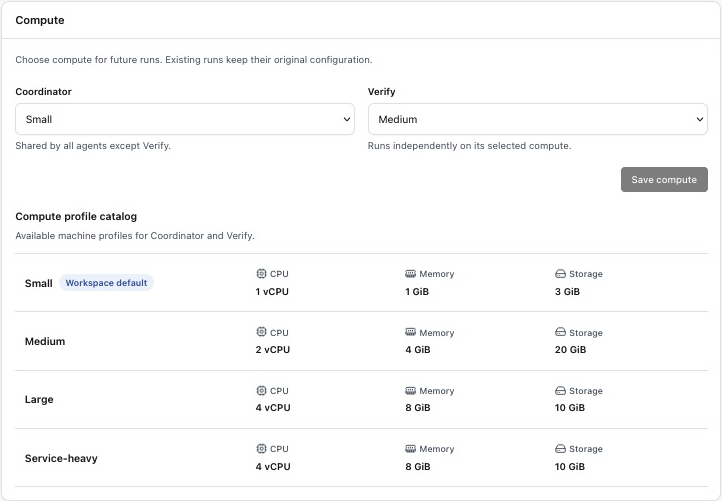
Open Settings and find Compute. The catalog shows each workspace profile and the resources mapped to the active sandbox provider. The profile marked Workspace default is used when no more specific assignment exists.
Bundled profiles
| Profile | Use | Daytona resources |
|---|---|---|
| Default small | Routine agent work and lightweight validation | 1 vCPU, 1 GiB memory, 3 GiB storage |
| Medium | Builds and focused integration tests | 2 vCPU, 4 GiB memory, 20 GiB storage |
| Large | Broad builds, browsers, and parallel test work | 4 vCPU, 8 GiB memory, 10 GiB storage |
| Service-heavy | Verification that starts multiple local services | 4 vCPU, 8 GiB memory, 10 GiB storage |
The active provider may translate a profile differently. The Settings page shows the effective catalog for your workspace.
Assign Coordinator and Verify compute
- 1Open Settings
Find the Compute panel.
- 2Choose a compute profile
Choose the Coordinator profile shared by agents except Verify, then choose a separate Verify profile for QA work.
- 3Save compute
Save the selected profiles for future runs. Existing runs keep their original configuration.
Selection behavior
The current product separates Coordinator compute from Verify compute. Coordinator is shared by the other agents; Verify runs independently on its selected profile. Changes apply to future runs. Existing runs keep their original configuration.