
Manage
Invite your team
Invite teammates from Settings. Once invited, they can sign in at app.prinevo.ai and access the workspace using the account associated with their invited email.
Invite a workspace member
- 1Open Settings
Sign in to app.prinevo.ai, then open Settings.
- 2Find Members
Select Invite in the Members section.
- 3Enter the teammate’s email and role
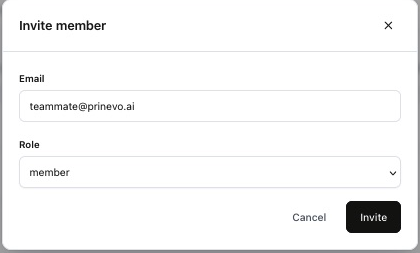
In Invite member, enter their email and select the appropriate role: member or owner.
- 4Send the invitation
Select Invite. Check Members for the member or pending invitation before inviting the same person again.
After the invitation, sign in to Prinevo
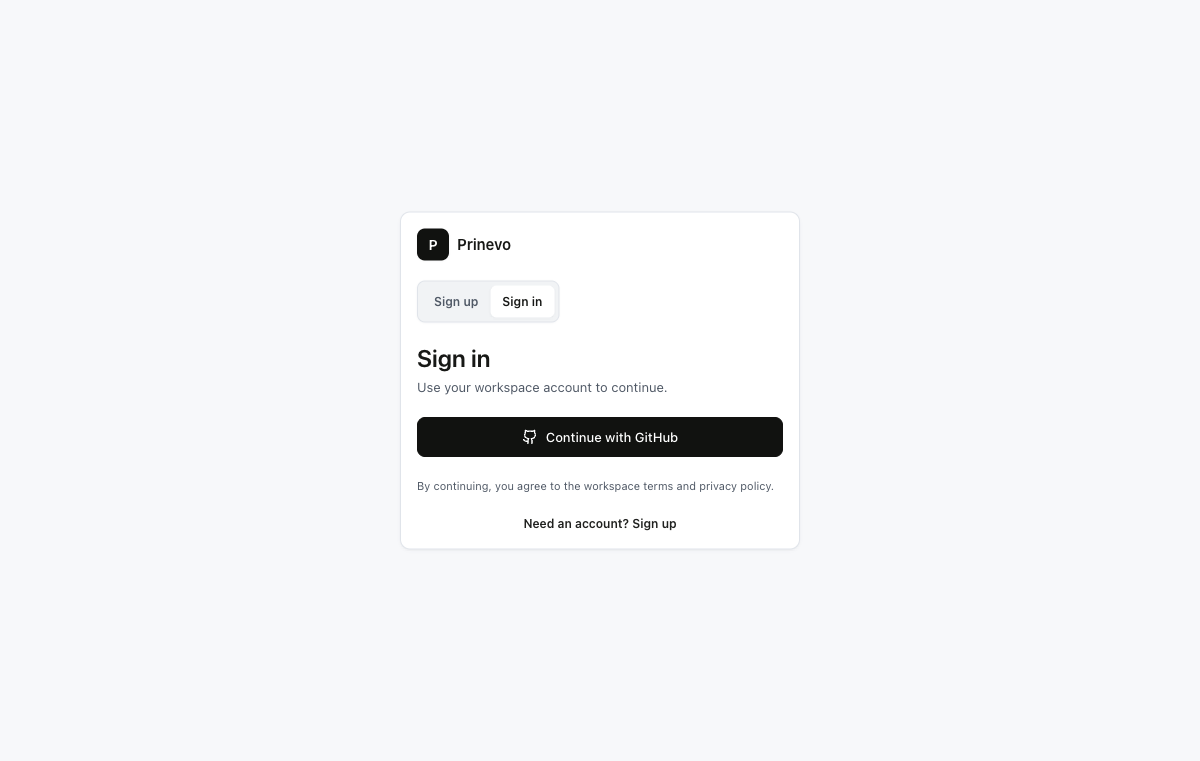
Once invited, your teammate can open app.prinevo.ai/sign-in, choose Continue with GitHub, and sign in with the account associated with the invited email. If Prinevo presents a pending invitation, select Accept invite to join the workspace.
Use the invited account consistently. Signing in with a different identity can leave the teammate without access to the intended workspace.
If the teammate cannot access the workspace
- Confirm the invitation email and the account used to sign in match.
- Check Members for a pending invitation or existing membership.
- Complete Accept invite if the workspace access screen shows it.
- Ask the workspace owner to check access if the intended workspace still does not appear.